
Running a Patient Experience Survey
Clinical Fox includes a built-in Patient Experience Survey (PES) that you can send to patients to collect structured feedback about their anaesthesia care and recovery. This is designed to meet the requirements for ANZCA CPD "Category 1 Practice evaluation / Reviewing Performance" activities, with options for de-identification, aggregation, and use of an external facilitator to ensure privacy compliance.
The PES is available to both Premium and Logbook subscribers.
Quick Start
From any patient case, tap the communications icon in the app bar and select "Patient experience survey".
Choose START NEW to create a new survey campaign, or select an existing in-progress campaign.
Configure your campaign options (response target, facilitator, demographics).
Tap SEND SURVEY to send the survey link to the patient via SMS.
View results on the Communications screen (filter by "Surveys & Audits" if needed).
1. Sending a Survey from a Patient Case
From the Event Detail Screen
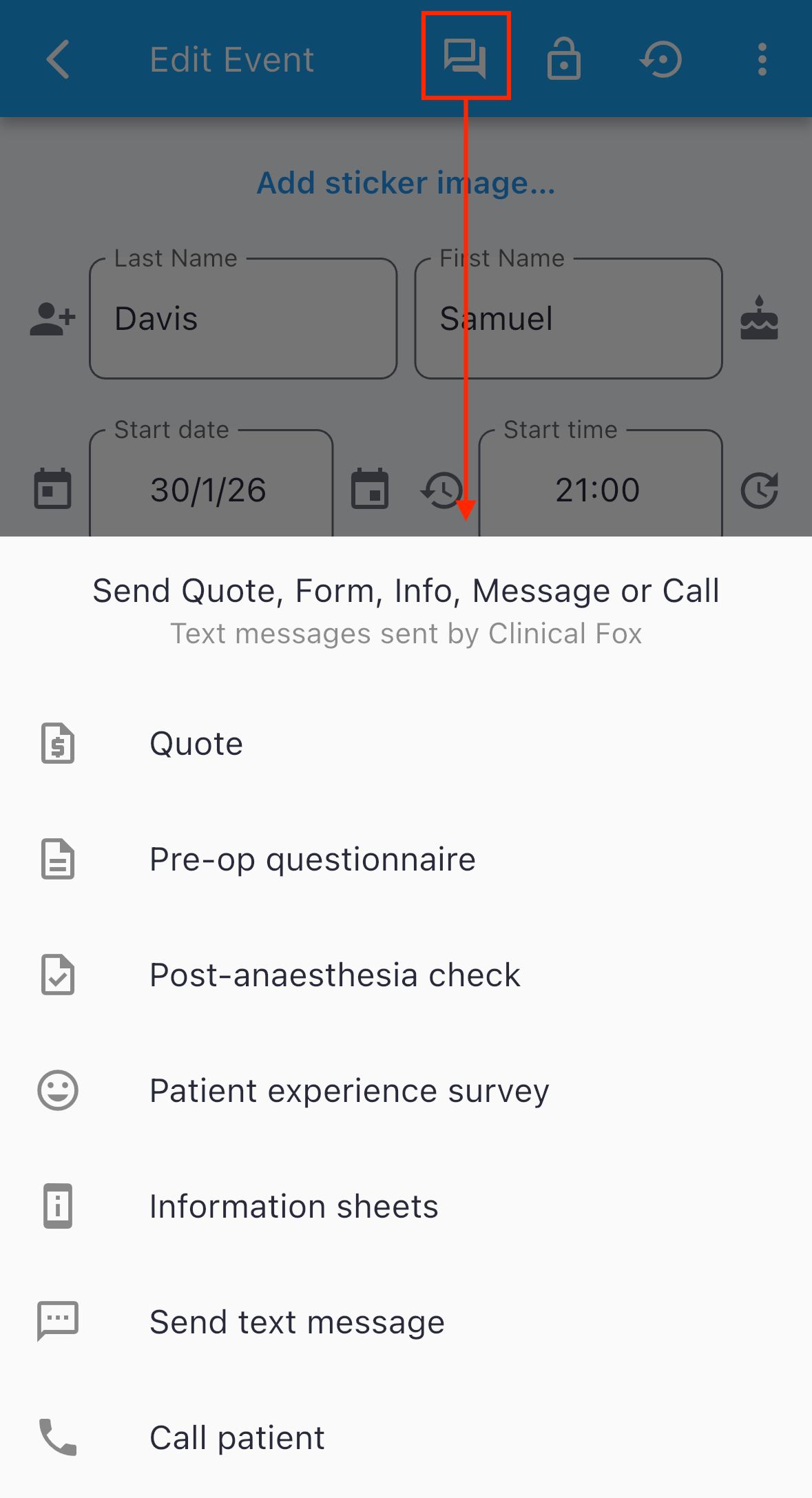
Open a patient case and tap the communications icon (speech bubble) in the app bar. From the communications menu, tap "Patient experience survey".
From the Main Case List
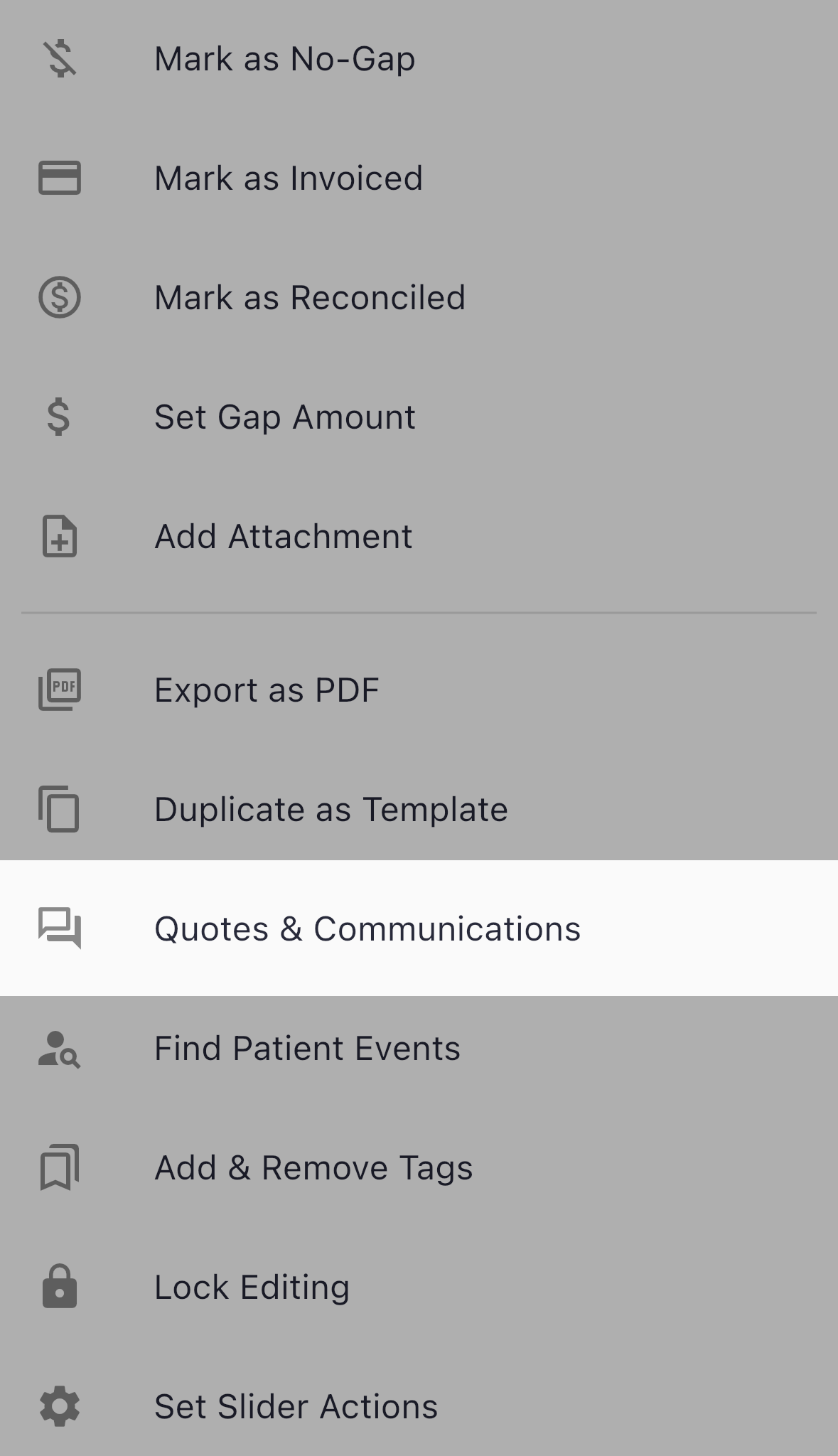
You can also send surveys from the home screen. Tap and hold a case to select it (or select multiple cases to send a PES to multiple patients as one action), then tap the more actions menu and choose "Quotes & Communications":
From the communications menu that appears, tap "Patient experience survey":
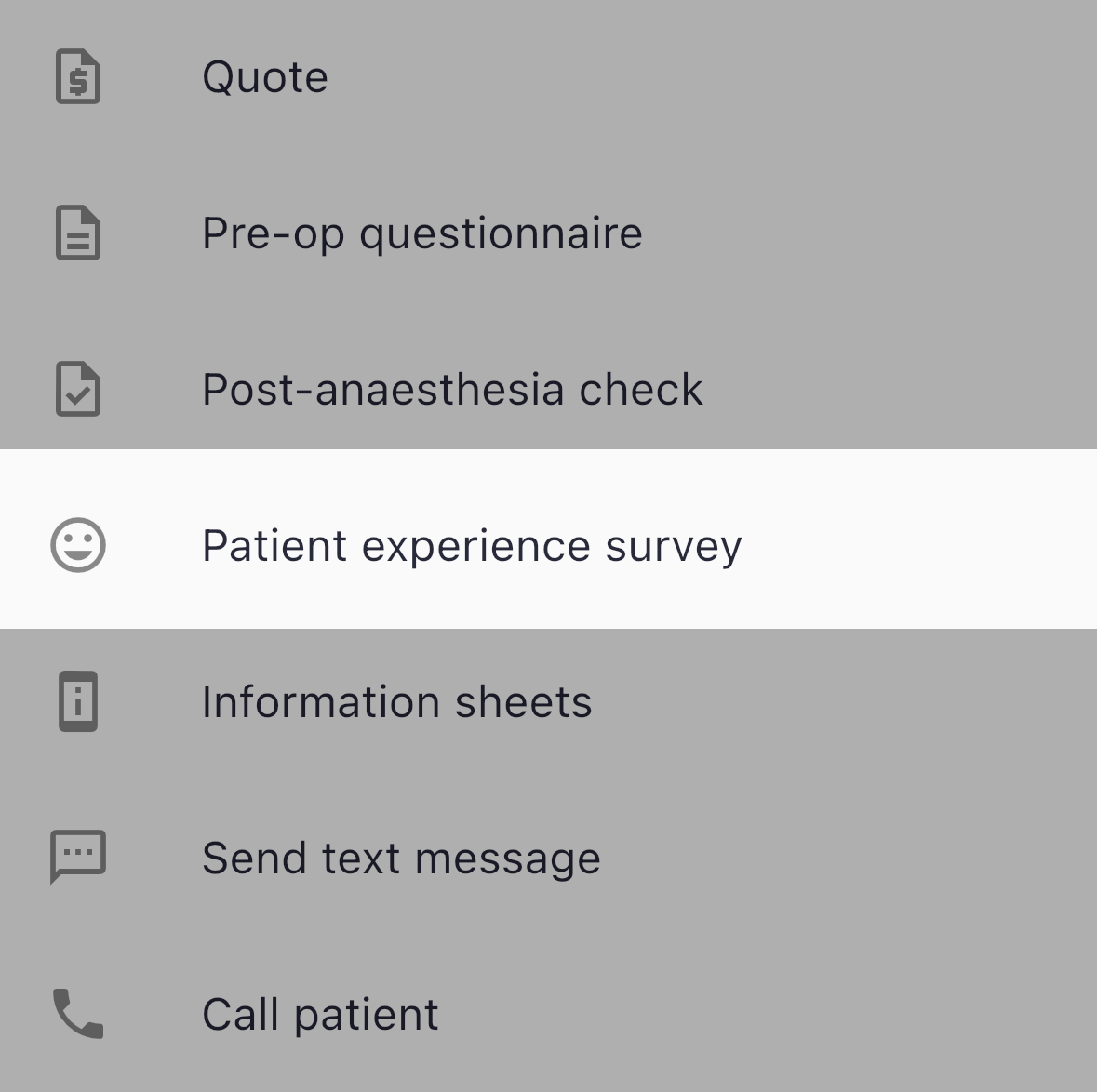
This method is useful when you want to send surveys to multiple patients at once.
2. Starting a New Campaign
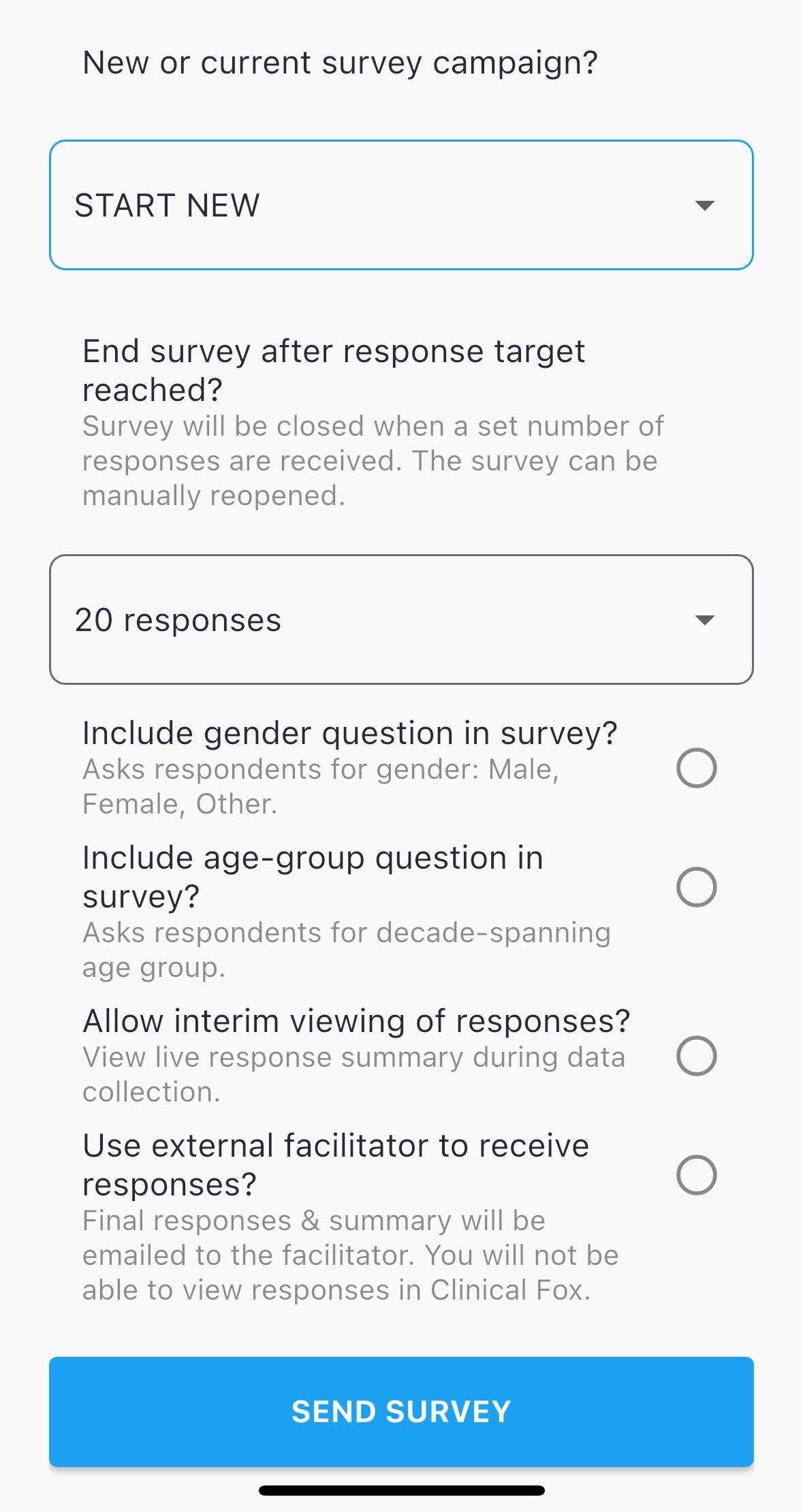
When you tap "Patient experience survey", a configuration sheet appears. Select START NEW from the "New or current survey campaign?" dropdown to create a fresh campaign.
Campaign Options
End survey after response target reached?
Choose when the survey should automatically close. Options include 15, 20, 30, 50, or 100 responses, or NEVER for manual control. The default is 20 responses. When the target is reached, the survey closes automatically and results are emailed to you (or your facilitator). A closed survey can be manually reopened if you need more responses.
Include gender question in survey?
Adds a gender question (Male, Female, Other) to collect demographic data for your analysis. This option cannot be changed after the campaign starts.
Include age-group question in survey?
Adds a decade-spanning age group question (18-24 through 75+). Like the gender question, this cannot be changed after the campaign starts.
Allow interim viewing of responses?
When enabled, you can view a live summary of responses while data collection is still underway (available once 5 or more responses are collected). When disabled, you can only see results after survey closure. You cannot view interim results when using an external facilitator, as required for ANZCA CPD compliance.
Use external facilitator to receive responses?
Enable this for full CPD privacy compliance. When turned on, you provide the facilitator's name and email address. Final responses and the summary will be emailed directly to the facilitator, and you will not be able to view the interim response summary in Clinical Fox. The facilitator's name is shown to survey respondents. This option supports ANZCA requirements for de-identified, independently facilitated patient feedback.
Tap SEND SURVEY to send the survey link to the patient via SMS.
3. Adding Patients to an Existing Campaign
If you already have an in-progress survey campaign, select it from the "New or current survey campaign?" dropdown instead of choosing START NEW. The dropdown lists all your active campaigns by name (e.g., "PES 2 Nov 22").
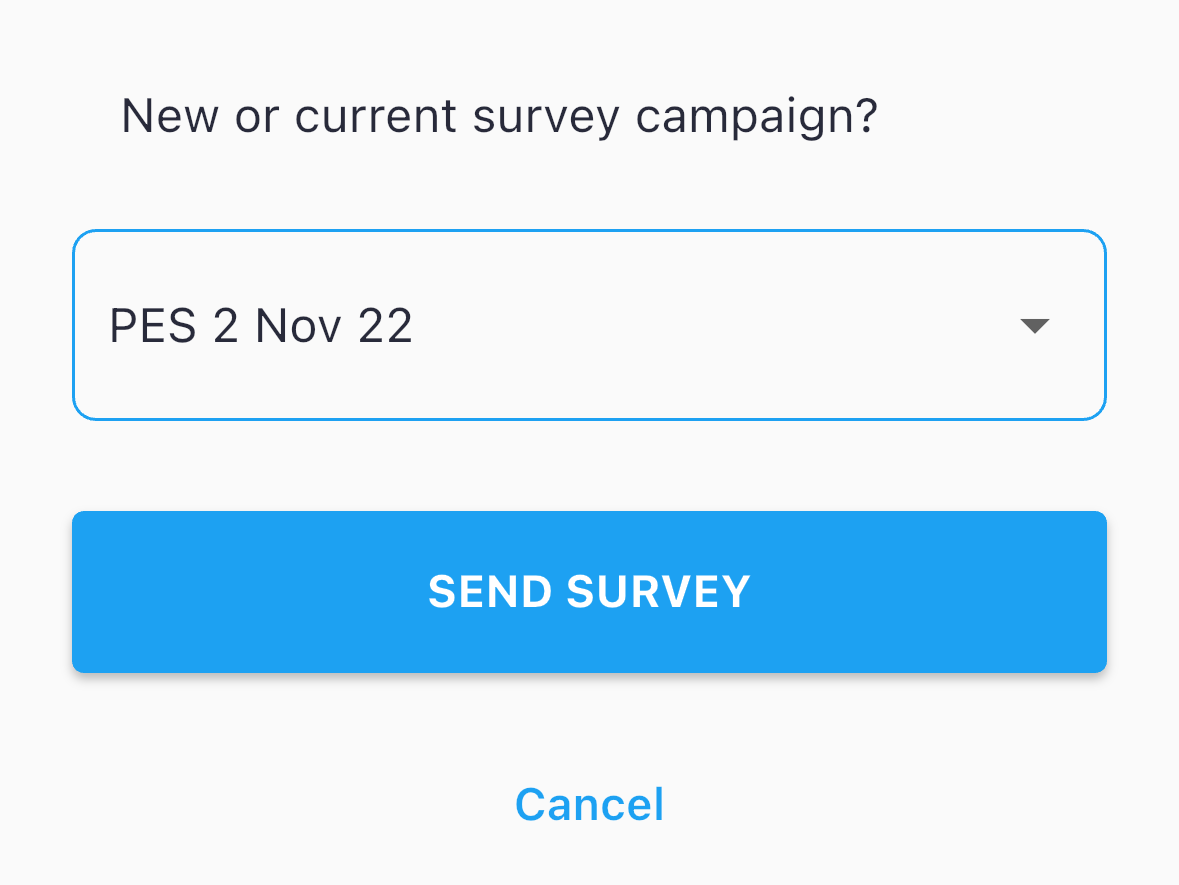
Tap SEND SURVEY to add this patient to the existing campaign. The patient receives an SMS with a link to the same survey form. Continue adding patients over days or weeks until you reach your response target.
4. What Patients See
Each patient receives an SMS from "ANAESTHESIA" containing a link to a web-based survey form. The survey covers:
Pre-operative experience: Pain management, opportunity to ask questions, quality of information provided, assessments of rapport, anxiety management, and explanation of post-operative expectations.
Post-operative experience: Pain management, nausea/vomiting and cold/shivering management.
General feedback: Open-ended comments about care and suggestions for improvement.
Questions use a mix of yes/no responses, 1-5 rating scales (poor to excellent), and free-text comment fields. Conditional questions appear only when relevant (e.g. pain management effectiveness is only asked if the patient reports having pain).
You can Preview the survey, as will be seen by a patient, by selecting “START NEW” and then “Preview” instead of SEND SURVEY, in the Send Patient Survey dialog.
5. Viewing Results
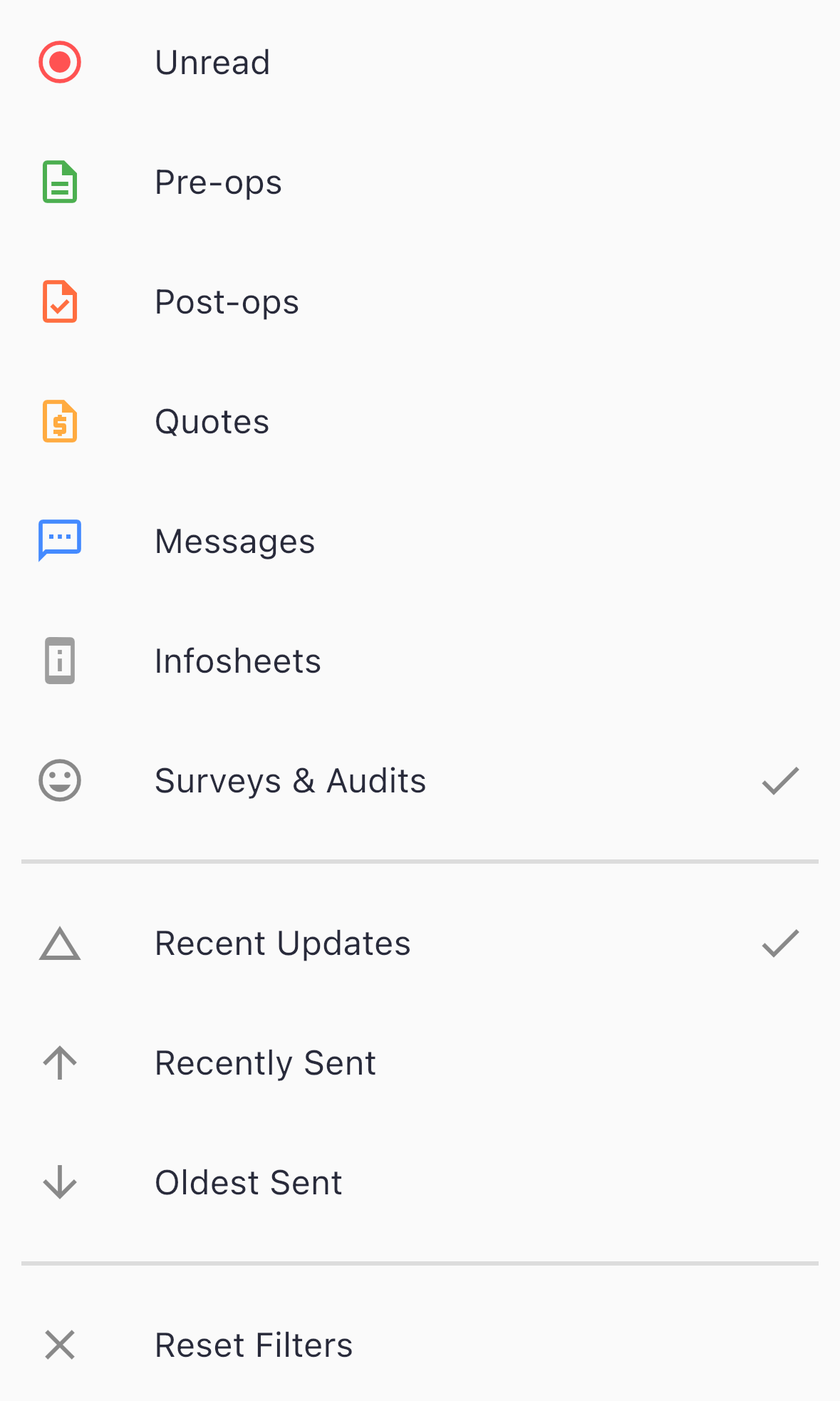
Navigate to the Communications screen from the main drawer menu. If you have many communications, tap the filter icon and select "Surveys & Audits" to show only survey results.

Each survey campaign shows its name, status (sent, in-progress, or complete), the number of surveys sent, and the number of responses collected. Tap the expand arrow to view detailed results.
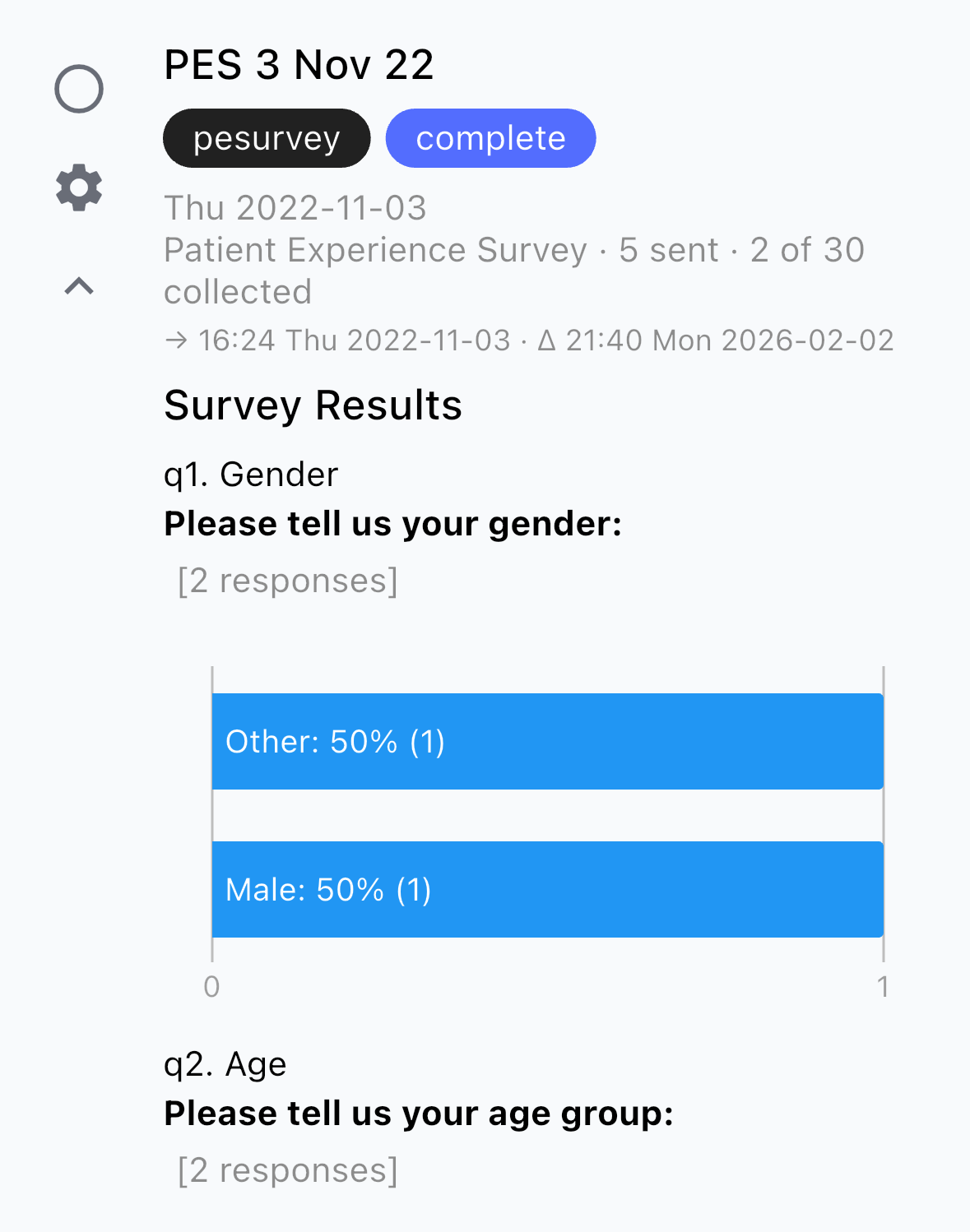
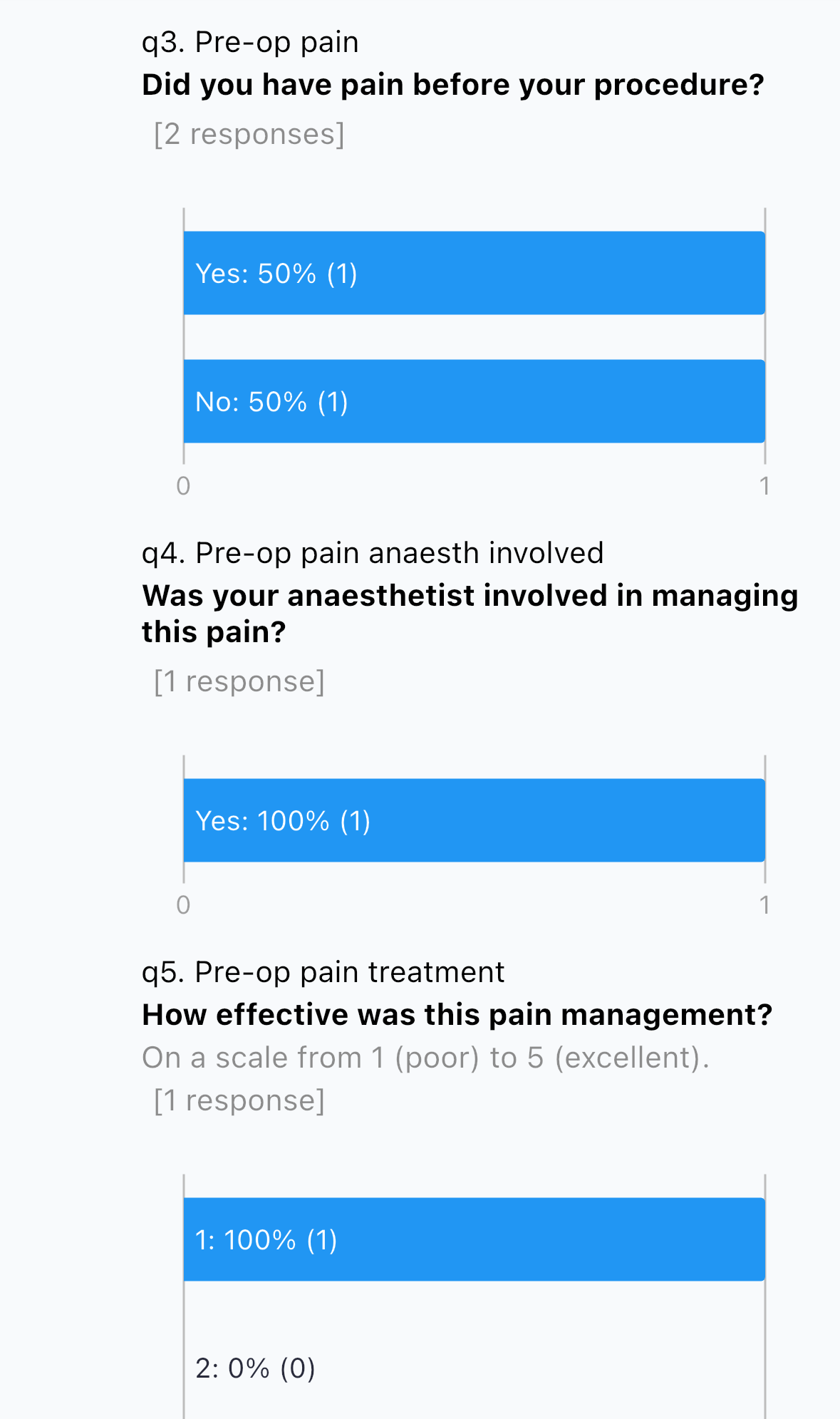
Results are displayed question by question with:
Response counts for each question.
Horizontal bar charts showing the distribution of answers with percentages.
Rating statistics (mean, median, range) for scale questions.
Free-text responses displayed as individual quotes.
6. Managing Your Campaign
Tap the settings icon (gear) on any survey in the Communications screen to modify settings. You can:
End the survey: Closes the campaign and triggers a results email to you or your facilitator.
Reopen the survey: Resumes a closed campaign to collect additional responses.
Change the response target: Adjust the auto-end threshold.
Modify facilitator settings: Update facilitator details or toggle external facilitation.
When a survey is closed (either manually or by reaching the response target), a comprehensive results summary is emailed to you or your designated facilitator.
7. Tips for ANZCA CPD Compliance
Use an external facilitator for full privacy compliance. The facilitator receives de-identified, aggregated results by email.
Collect sufficient responses for meaningful data. ANZCA guidelines require a minimum of 15 responses for valid feedback.
Disable interim viewing when using a facilitator to ensure you only receive aggregated results.
Document your reflections on the feedback as part of your CPD activity submission.
The survey is designed to align with ANZCA's Patient Experience Survey requirements under Category 1 Practice evaluation / Reviewing Performance.
8. What's Next
For information about other Clinical Fox features, see:
Logbook Workflow Guide: Capturing case information using Logbook Mode.
Logbook Statistics & Analytics (coming soon): Learn how to analyse your case mix, track trends, and generate insights from your logbook data.
Exporting Data (coming soon): Downloading your case data as CSV for external analysis or archiving, or create comprehensive PDF summaries.